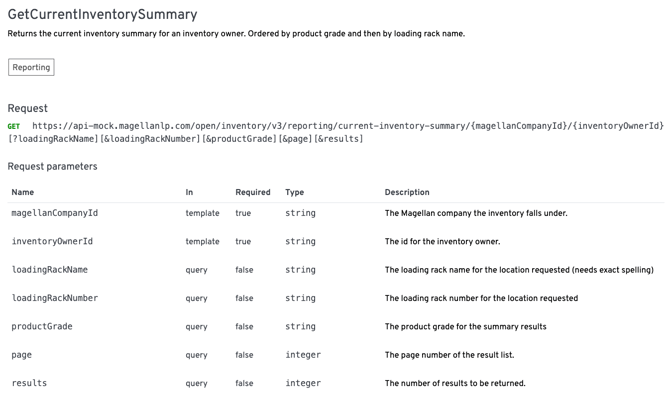
Yes. Although setup is somewhat complex, once complete, your spreadsheet will automatically update with near real-time data throughout the day.
This process becomes much faster and easier the more it is used, so updates can be made several times a day to stay ahead of the market.
Open Excel
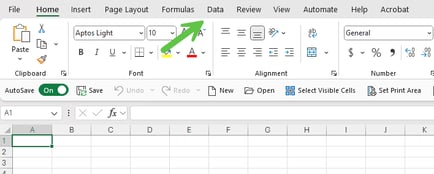
Go to the Data Tab
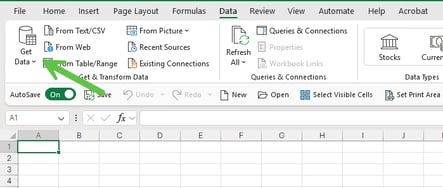
Select Get Data
Open Blank Query - Advanced Editor
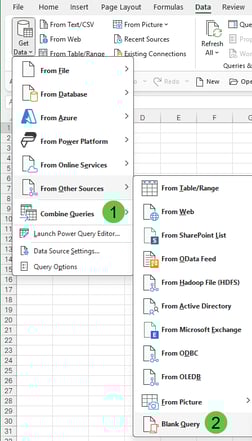
Open Advanced Editor - Power Query Editor
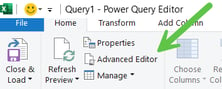
Add the following information (bold) to the blank Query, including the word let in the next row
Copy Start on next line
let
// Define the API endpoint
//Copy the desired URL from Postman or the Developers Portal -
"ApiUrl = "https://api-open.magellanlp.com/open/inventory/V3/reporting/current-inventory-summary/1/abc",
//abc = equals company affiliate number
//Ensure API-Open and not Mock
// Define the headers for authentication
Headers = [
#"Authorization" = "Bearer <add Token from Postman - directions below. Add token after the work bearer and before the close quotation marks>",
#"Ocp-Apim-Subscription-Key" = "<Add Subscription Key from Postman>". directions to obtain subscription key below>"
],
// Make the API request
Response = Json.Document(Web.Contents(ApiUrl, [Headers = Headers])),
Stop copy on previous line
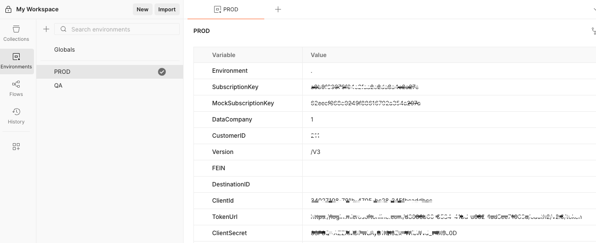
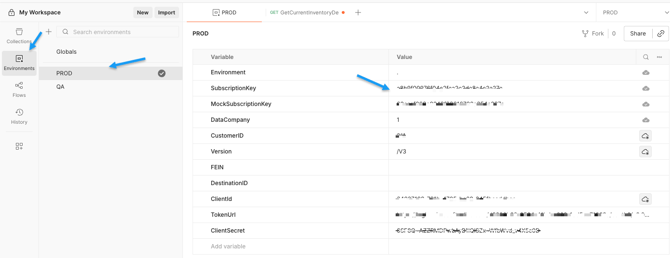
Tokens from Postman:
Enter the required codes listed below that are obscured. Please contact Swift API support team if you need assistance:
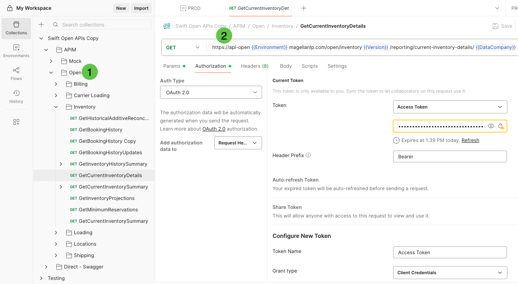
Select the endpoint that provides the required data:
let
// Define the API endpoint
Copy the desired URL from Postman or the Developers Portal -
"ApiUrl = "https://api-open.magellanlp.com/open/inventory/V3/reporting/current-inventory-summary/1/abc"
-
- abc = equals company affiliate number
- Ensure API-Open and not Mock
// Define the headers for authentication
Headers = [
#"Authorization" = "Bearer <add Token from Postman - directions below. Add token after the work bearer and before the close quotation marks>"
#"Ocp-Apim-Subscription-Key" = "<Add Subscription Key from Postman>". directions to obtain subscription key below
],
// Make the API request
Response = Json.Document(Web.Contents(ApiUrl, [Headers = Headers])),
How to Obtain the Required Token - #"Authorization" = "Bearer ..
This token will need to be refreshed, copied and pasted into the query after 60 minutes.
-
Highlight the desired endpoint
In the list of endpoints, click to select the one you need.
-
Open the Authorization tab
This tab is located directly below the Endpoint URL.
-
Verify token configuration
Ensure that no fields in the Configure New Token section show an error (marked in red).
-
Generate a new token
Scroll to the bottom of the Configure New Token section and click Get New Access Token.
-
Proceed with token generation
If a Proceed button appears, select it.
If it does not appear, review your token configuration settings or check the Environments → Params section for errors.
-
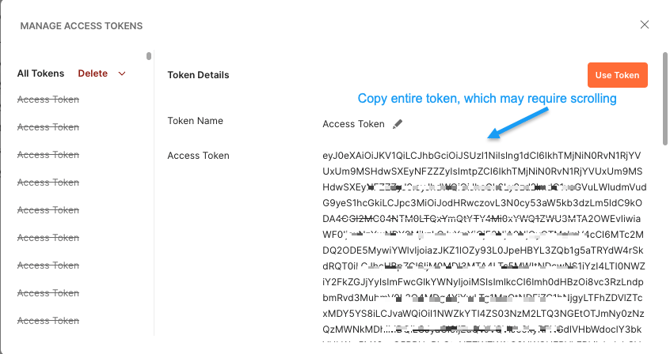
Copy the token (do not apply it)
Do not click Use Token.
Instead, copy the entire token string (you may need to scroll to see it all).
This token should then be pasted into your Excel or Power BI connection query.
How to obtain the required subscription key.
This is initially provided from the Swift API Support Team
Optional, but recommended. Add this to the end of the query to make the response easier to process. This is specifically for the GetCurrentInventorySummary. The column names will need to be adjusted for other API endpoints.
"
/
// Make the API request
Response = Json.Document(Web.Contents(ApiUrl, [Headers = Headers])),
#"Converted to Table" = Record.ToTable(Response),
Value = #"Converted to Table"{0}[Value],
#"Converted to Table1" = Table.FromList(Value, Splitter.SplitByNothing(), null, null, ExtraValues.Error),
#"Expanded Column1" = Table.ExpandRecordColumn(#"Converted to Table1", "Column1", {"inventoryOwner", "loadingRack", "product", "volume"}, {"Column1.inventoryOwner", "Column1.loadingRack", "Column1.product", "Column1.volume"}),
#"Expanded Column1.volume" = Table.ExpandRecordColumn(#"Expanded Column1", "Column1.volume", {"available", "inTransit", "availableReserved", "inTransitReserved", "sit", "total", "loadable", "daysSupply", "unitOfMeasure", "ton"}, {"Column1.volume.available", "Column1.volume.inTransit", "Column1.volume.availableReserved", "Column1.volume.inTransitReserved", "Column1.volume.sit", "Column1.volume.total", "Column1.volume.loadable", "Column1.volume.daysSupply", "Column1.volume.unitOfMeasure", "Column1.volume.ton"}),
#"Expanded Column1.product" = Table.ExpandRecordColumn(#"Expanded Column1.volume", "Column1.product", {"id", "name", "grade"}, {"Column1.product.id", "Column1.product.name", "Column1.product.grade"}),
#"Expanded Column1.loadingRack" = Table.ExpandRecordColumn(#"Expanded Column1.product", "Column1.loadingRack", {"id", "name", "number"}, {"Column1.loadingRack.id", "Column1.loadingRack.name", "Column1.loadingRack.number"}),
#"Expanded Column1.inventoryOwner" = Table.ExpandRecordColumn(#"Expanded Column1.loadingRack", "Column1.inventoryOwner", {"magellanCompanyId", "id", "name"}, {"Column1.inventoryOwner.magellanCompanyId", "Column1.inventoryOwner.id", "Column1.inventoryOwner.name"})
in
#"Expanded Column1.inventoryOwner"
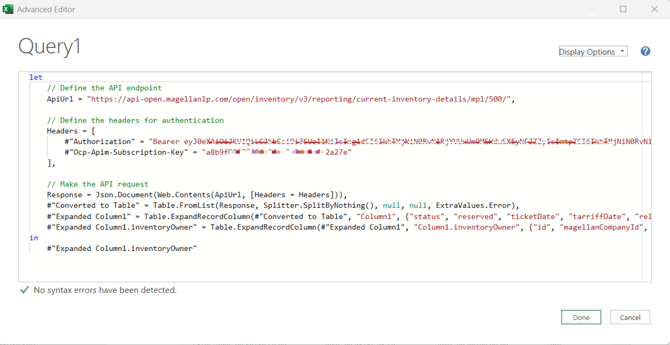
The query should look like this, with active tokens, when complete:
Select "Done". If the Access Web Content box appears, scroll down to appropriate API. This can be difficult to read as the URLs are generally longer than the dialog box, so hover and read the text box.
Select Edit Credentials, if this box doesn't pop-up.
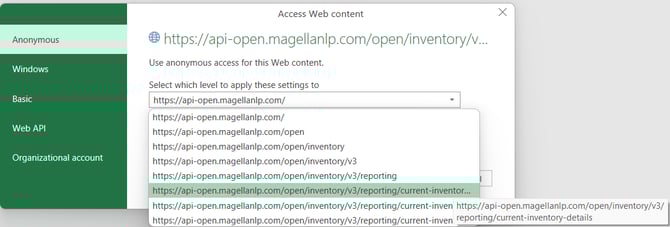
Select "Connect".
API results should appear. If not, 1st troubleshooting step is to refresh the Postman token and re-paste it into the Advanced Query.
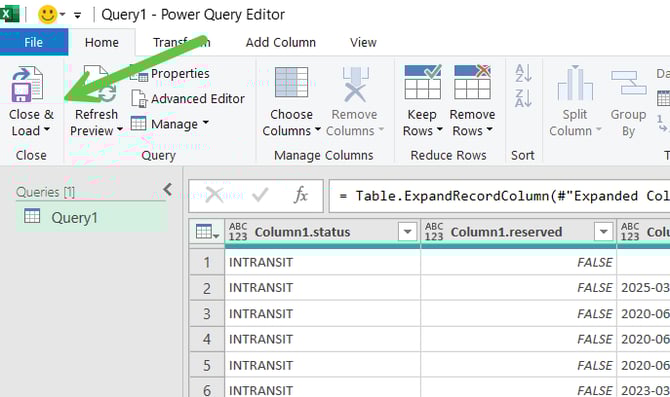
Once the query results are acceptable, select the Close & Load button and use the data as needed. This process becomes much faster and easier the more it is used, so updates can be made frequently to stay ahead of the market.
Optional - Query Parameters
To limit the results to a date or terminal parameter, add Params in the Collections tab.
It is easier to do this in Postman and then copy the new URL to the Excel Query Editor.
To find parameters please sign into the Developers Portal https://developers.magellanlp.com/.
To add a new Param, make sure to spell the Name exactly as is (Caps and Spaces) as is listed in the Developer Portal