Before you start you need credential to log into the Developers Portal and Postman to get a token for the library you would like to test.
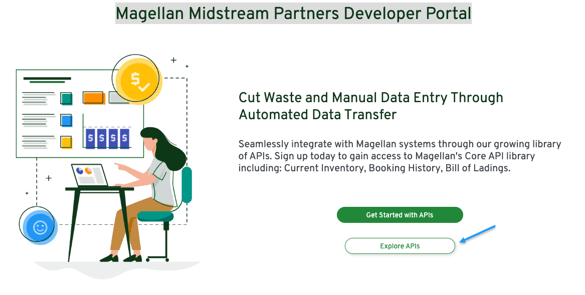
Step 1: Access the Magellan Midstream Partners Developer Portal
-
Go to:
Magellan Midstream Partners Developer Portal at https://developers.magellanlp.com/
- Choose "Explore APIs"
Step 2: Sign In
- Sign in to the Developer Portal using your credentials provided by ONEOK.
Step 3: Navigate to an API
- In the Developer Portal, go to the APIs section.
- Select the API you want to test from the list.
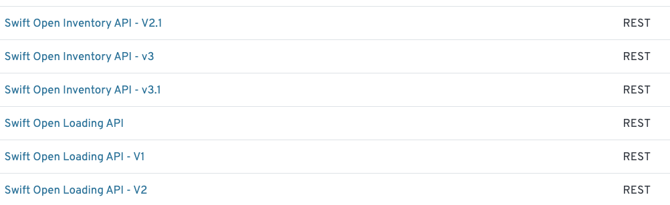
Step 4: Access the Library you would like to test
- Select an API library you want to test.
Step 5: Access the endpoint you would like to test
Select the API Grouping with the endpoint you would like to try.
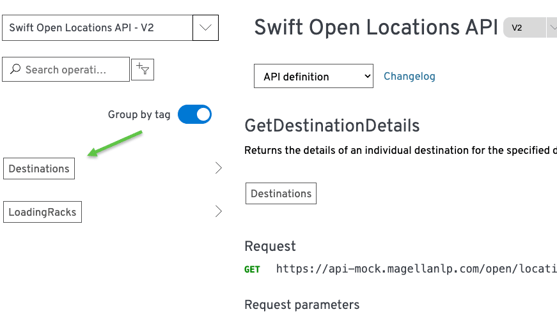
- Select the endpoint you would like to test and you will see the "Try It" button
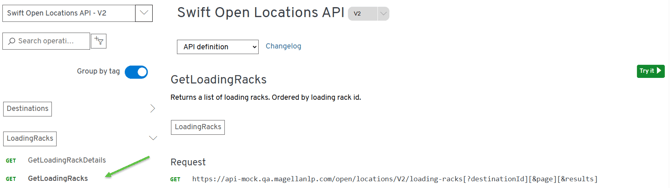
The "Try It" now dialog box will appear when you choose the "Try It" now button.
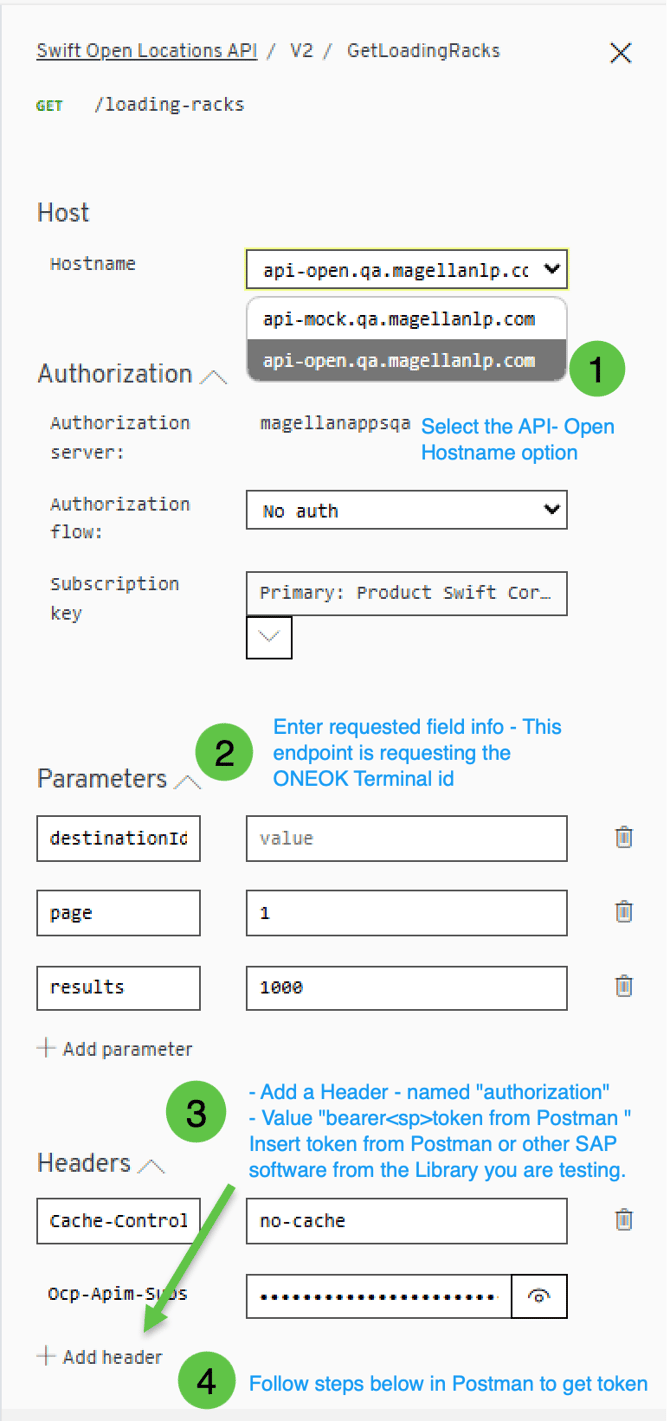
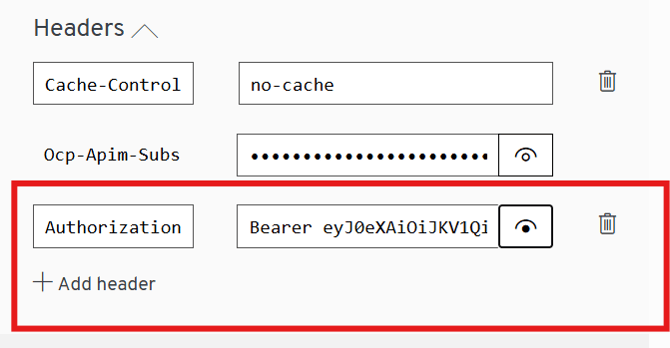
Example: New Authorization Header with Bearer and Token.
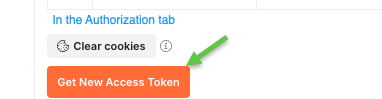
Postman Token
If you need to get authorized to use Postman for ONEOK Refined, please refer to the following article:
If you need any IDs or additional access support, contact the Swift+ API Team at SwiftAPIs@oneok.com.
Once you are authorized to use Postman, please open an endpoint in the library you would like to test and select "Get New Access Token" at the bottom of the Authorizations tab.
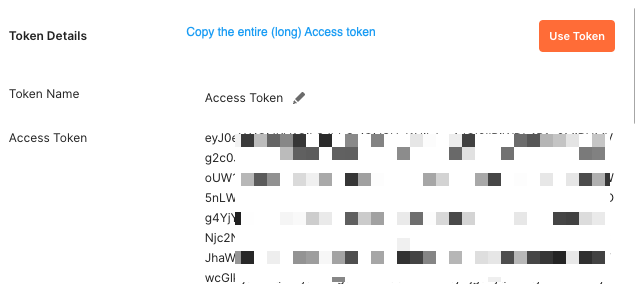
Paste the token in the Authorization Header you created above:
Header:
Authorization- type "bearer<single space>"paste token
Step 6: Execute the Request
- Click the Send button at the bottom of the "Try It" panel
- The portal will execute the request and show the results at the bottom of the panel.
Step 7: Analyze the Results
- Check the HTTP status code (200 for success, 401 for unauthorized, etc.).
- Review the results body for the data returned.
- Make adjustments to your request and try again if needed.