- Access the login page by clicking this link ONEOK Customer Portal at portal.magellanlp.com
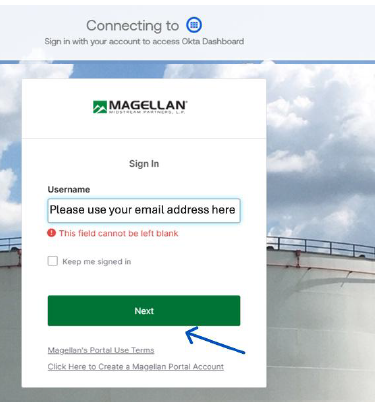
- Use your email address as the ‘Username’ and click ‘Next’
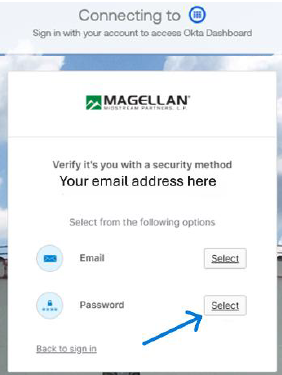
- Choose ‘Password.’
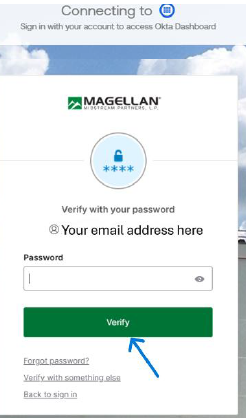
- Enter password and click ‘Verify.'
- Click ‘Send me an email.’
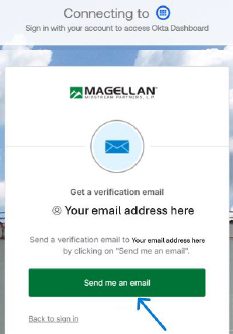
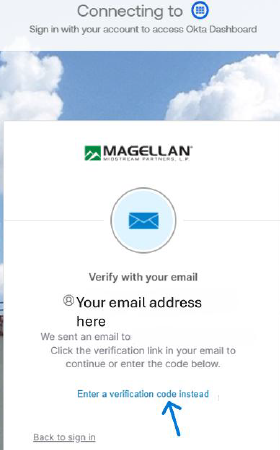
- These instructions will show the steps if you click ‘Enter a verification code instead’ but you have 2 options. You can wait for the email and use the link in the email to be redirected directly to step 9. These instructions show the steps if you click ‘Enter a verification code instead’
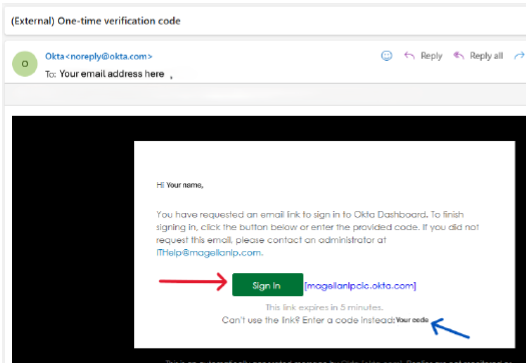
- You should receive an email that looks like the email below. You have 2 options to choose from.
- You can click “Sign In” (red arrow) and you will automatically be taken to step 9.
- You can copy the code by the blue arrow and proceed to step 8.
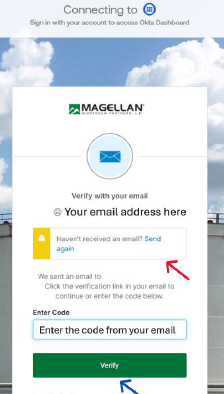
- If you choose to use the code, enter it here and click ‘Verify’. The warning message (red arrow) will appear if you do not reply promptly. Anyone that uses the “Sign In” link in step 7 will not see this screen.
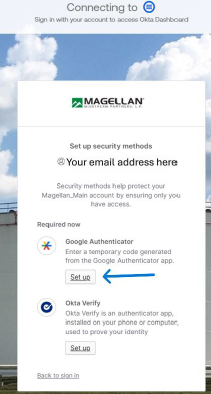
- Click ‘Set Up’ under ‘Google Authenticator’ (blue arrow).
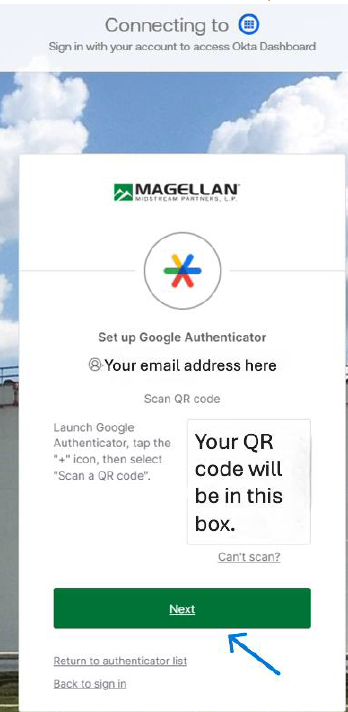
- You will see this screen next that has a QR code. Open the ‘Google Authenticator’ app on your Android or iOS devices and continue with the instructions below.
- In the ‘Google Authenticator’ app on your Android or iOS device, click the plus sign
in the bottom left corner.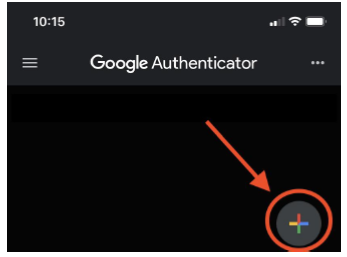
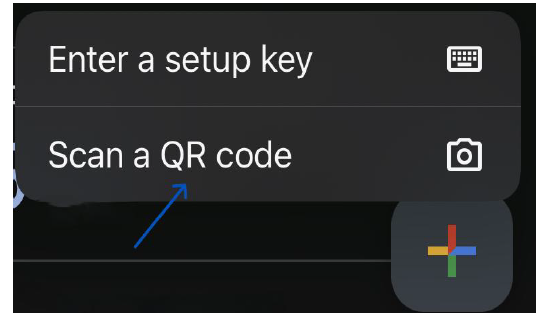
- Choose ‘Scan a QR code’ and scan the code in step 10.
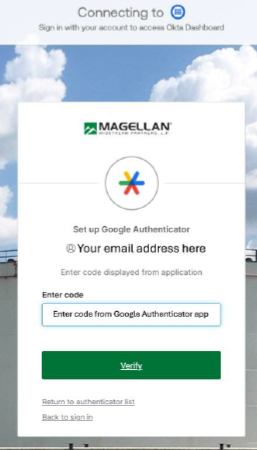
- Enter the Rolling Code from the ‘Google Authenticator’ app and click ‘Verify’.
- These steps are optional and will have separate instructions. The ‘Okta Verify’ setup
(red arrow) can be found here. The Phone set up (green arrow) can be found here. If
you click ‘Continue’, you will be taken to step 19.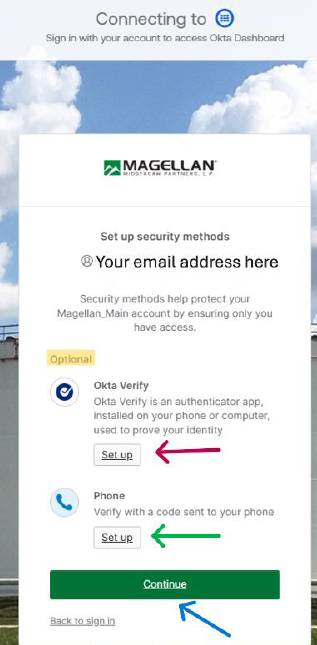
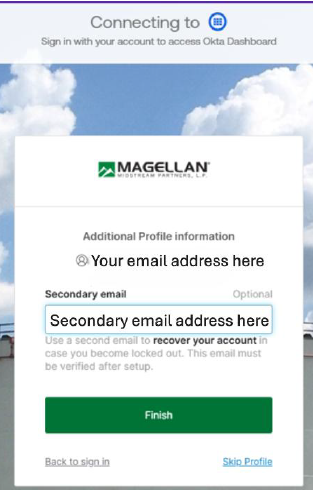
- This step is also optional. Once you enter a secondary email click ‘Finish’. Otherwise
click ‘Skip Profile’.