General Information & Contact Information
- To view invoices in the Reporting App, you will need to be granted permission by your company’s Security Administrator.
- Questions regarding access to Reporting App, specific invoices, determining the company Security Admin, please reach out to PortalCustomers@ONEOK.com.
Logging in to The Reporting App
- Once users have access, log in to the myMagellan Portal by clicking on “Access the Portal” when you go to www.oneok.com/customers/rpco.

- Users are prompted to log in. Your credentials are the same email address and password associated with your portal access.
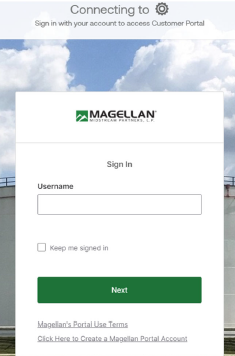
- Complete the multifactor authentication (MFA) setup.
- A two-step authenticator is required for all Refined Products products and systems.
- We suggest either Okta Verify or Google Authenticator.
- Once logged in, click Go to Reporting App.
- If you do not see this when you log in, please click on “Choose
Apps” and select 'The Reporting App.' Once chosen, it will be there going forward.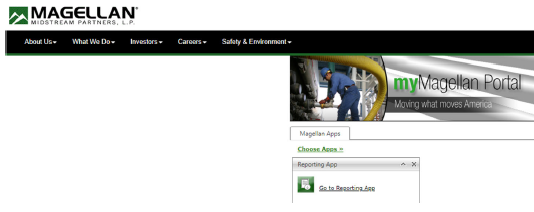
- If you do not see this when you log in, please click on “Choose
Managing 'Favorites' Reports
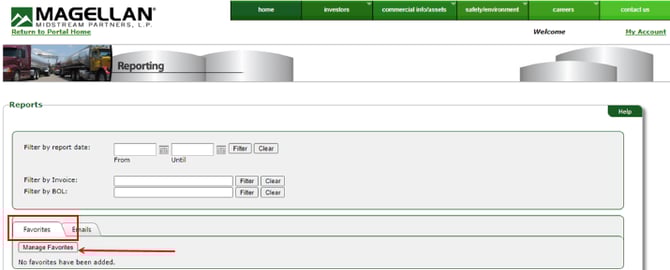
Within the Reporting App, users can select Favorites Reports to pin frequently accessed reports to the top.- To add a report to your Favorites, click Manage Favorites.
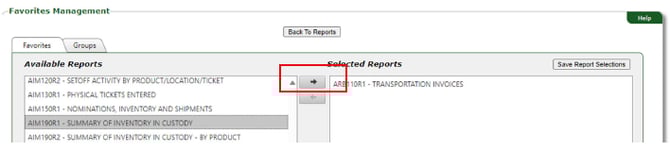
- Choose favorite report(s) and move to the right-hand column by clicking the right arrow. Users will see these reflected in your 'Selected Reports.' Once users have favorited all the their preferred reports, click Save Report Selections.
Viewing, Downloading, and Printing Invoice Reports
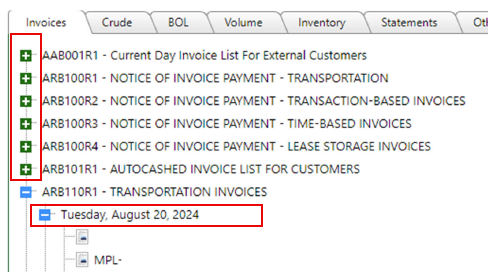
- To view a specific report, click the (+) plus sign to expand the list and see Invoice dates posted for each report.
- Double click the Invoice line to open.
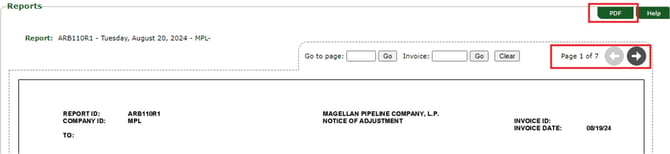
- View the invoice within the screen or click on “PDF” to download or print the invoice.
- Users can download the current page, multiple pages, or all pages; choose what best suits your business need.
- Note: It is possible to have more than one Invoice generated on a specific date, or there could be multiple pages of the same invoice.
- Navigate from page to page by clicking on the arrows.
- Reporting App reports are daily.
Filtering Reporting
By Date
If users know a specific date range that an Invoice was generated, users can use the date range filter.
- Enter dates in the “From” and "Until" boxes. Click Filter.
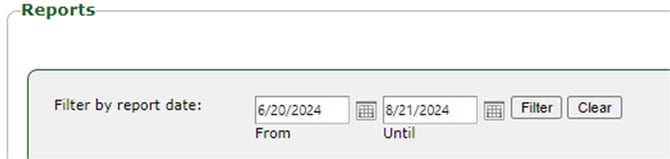
By Invoice ID
If users know a specific Invoice ID, enter 'MPL - XXXXXXXX' in the Filter by Invoice field. Invoices are eight digits and must have MPL - before the number. Click Filter.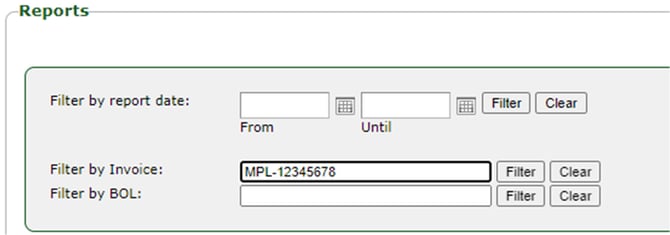
Reporting App FAQs
Common Reports
- AAB001R1 – Current Day Invoice List for External Customers
- AIM190R1 – Summary of Inventory in Custody
- ARB101R1 – Autocash Invoice List for Customers
- ARB110R1 – Transportation Invoices
- ARB130R3 – Transaction-Based Invoice Types – No Minimums (i.e. Terminalling, Additive, System Services)
- ARB131R2 – System Services – PTO Detail
- ARB133R2 – System Services – Product Authorization Detail
- ARB134R2 – System Services – Custom Blend Detail
- ARB135R2 – Additive Detail (Note: this populates on the first work day of each new month; even though the Reporting App shows it daily)
- ARB136R2 – Terminalling Invoice Supporting Detail
- ARB200R1 – Time-Based Invoice – Capacity Lease
- ARB210R1 – Miscellaneous Invoices
- ARB330R1 – Time-Based Invoice – Lease Storage
- STMTOFACCT – Statement of Account
Subscribing Individuals to Receive Reporting App Email Notifications
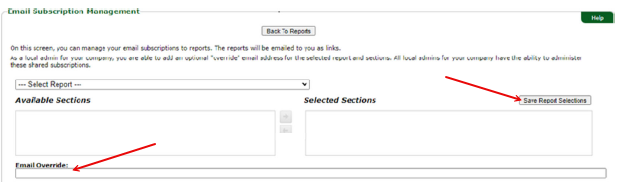
- Users with access to the Reporting App can sign up for email notifications when new reports are posted. To subscribe, click Emails > Manage Email Subscriptions.
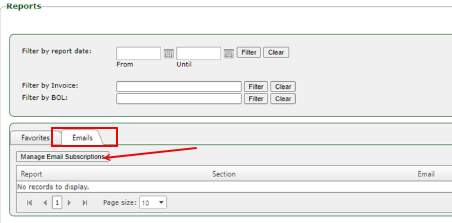
- Select report(s) to receive notifications. Select Customer ID in the Available Sections
area and click on the right arrow to move it to the Selected Sections area. When finished selection, click Save Report Selections.
- Users can view all subscribed notifications and recipient emails by clicking 'Emails' tab.

- When a report becomes available, users receive an email notification.
- Click the link to visit the Reporting App.
- Log in and complete the MFA, and users are directed to the invoice.

Subscribing Groups to Receive Email Notifications
Shared inboxes can subscribe to receive email notifications. Each member of the group has access to the email containing the link.
Those who are set up with an individual login and MFA can log in and see the invoice.
To subscribe a group, the company Security Admin must follow the same steps as individual subscriptions. However, the Security Admin must enter an override email address at the bottom before clicking Save Report Selections.