Log in to Swift
- Log in to Swift using your ATLAS username email and password and then the six numerical code from your multi-factor authentication application.
- If a user has questions around MFA, please visit MFA website.
- For unresolved login issues, call the ONEOK Service Desk at 833-ONEOKIT (833-663-6548). Calling creates a trackable ticket that can be reviewed and escalated to the correct IT team(s) as needed.
- You may also visit the self-service Support page to troubleshoot.
User Permissions within Swift
Who manages user permissions in Swift?
Security Administrators (SAs) are the only users who can grant full (View/Manage) or limited (View) Swift access to other users within their company. They are responsible for managing the user access rights of a given Global Customer in ONEOK's Refined Fuel systems.
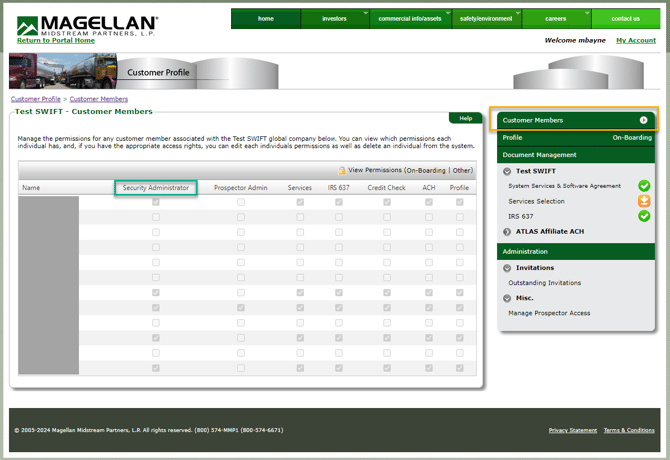
The role of Security Administrator is managed in the Customer Profile application from within the MyMagellan Portal (see below screenshot).
View the Customer Members section within your company profile to identify Security Administrators for your company.
If you can't find your Security Administrators, email the Portal Customers team for assistance.
Setting Up Swift Access: A Two-Step Process
-
Grant Legacy ATLAS Permissions — via the ATLAS Security application in MyMagellan Portal
-
Grant Swift Permissions — within Swift's User Permissions screen
Note: Note: If a user already has ATLAS access, skip Step 1 and go directly to Step 2
Step 1) Grant Legacy ATLAS permissions
-
As the Security Administrator, log in to the ATLAS Security application from the myMagellan Portal.
-
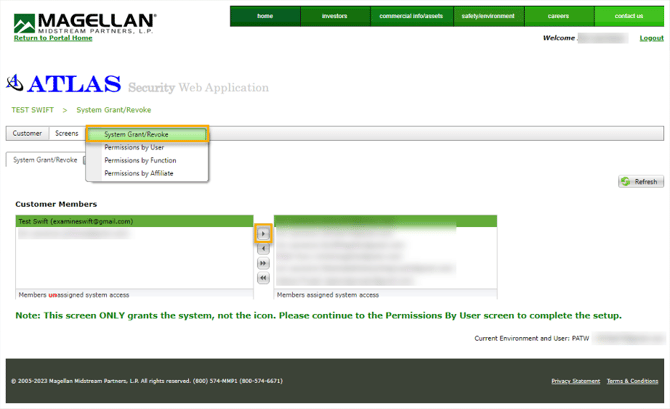
Click System Grant / Revoke. The screen displays two columns:
-
Left column: Users who do not have legacy ATLAS access.
-
Right column: Users who do have legacy ATLAS access.
-
-
To grant access: Select a user in the left column, then click '>' button to move to the right. You can multi-select as well.
-
To revoke/remove access: Select a user in the right column, click '<' to move to the left. You can multi-select as well.
-
Any person listed in the left column will no longer have access.
-
- Click OK in the confirmation prompt.
Step 2) Grant Swift Permissions
Granting access to users to view and/or manage activity in Swift modules
Note: The Global module is automatically provisioned for Swift users.
The Dispatching tile is only used by refined fuel carriers.
-
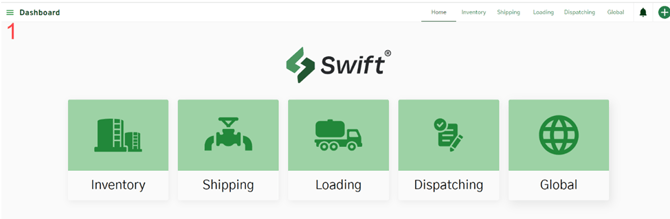
As the Security Administrator, go to Swift home page.
-
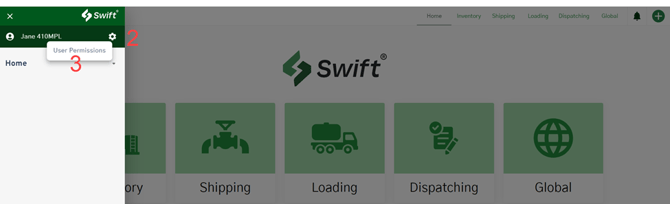
Click on Dashboard (the ☰ hamburger icon) in the upper left corner.
-
Click on the COG (⚙) settings gear.
-
Click User Permissions.
-
Click Edit Permissions.

-
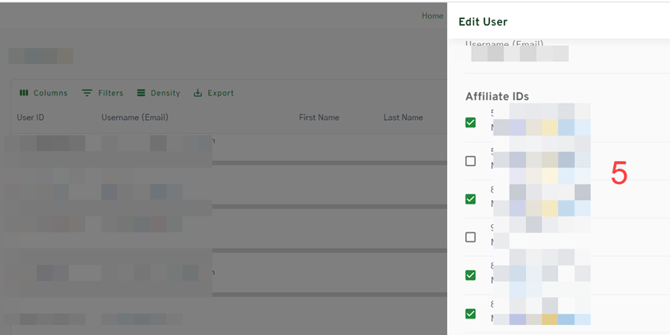
Select appropriate affiliates for the user. Scroll down to Feature Permissions.
-
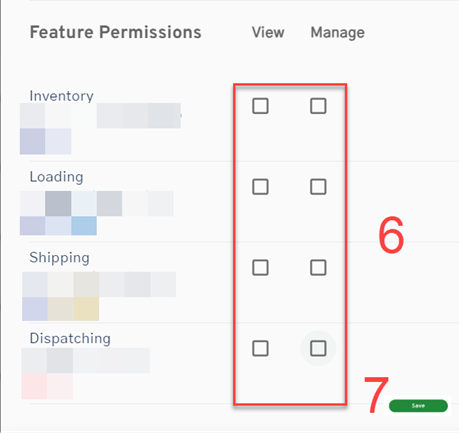
Select the appropriate access level for each feature:
View — Read-only. No ability to create, edit, cancel, or accept actions.
Manage — Ability to view and complete all actions. -
Click Save.
-
The Security Administrator should log out of Swift and log back in. All newly provisioned users must also log out, close their browser completely, and then re-access Swift at swift.magellanlp.com.