
What is a Customer Authorization?
- Who do you want to load?
- Suppliers use Customer Authorizations to allow or restrict their customers to load from the supplier’s accessible inventory.
- Formerly referred to as Customer Control (CCI), Customer Authorizations regulate limitations on customer access and the maximum volume available to load.
- You can set a volume to be shared across multiple ONEOK refined fuel terminals or use that inventory at a single ONEOK refined fuel terminal.
How do I search for and manage existing Customer Authorizations?
- Swift Landing Page > Loading > Customer Authorizations
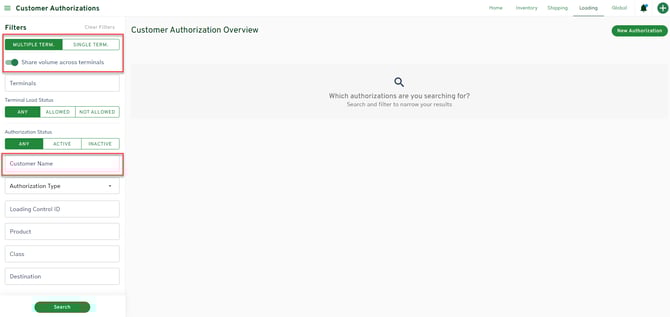
- Left side panel > Filters
Use the filter options on the left side panel to find a specific Customer Authorization. - From the resulting Customer Authorizations, click the Ellipsis menu on the Right side
-
- Select View, Edit, Deactivate, or Delete
-
Tip: Start with searching by Multiple Term or Single Term. If you can't find a Customer Authorization, switch between them and the "Shared volume across terminals" toggle-switch. Sometimes, a Multiple Terminal authorization may only have one terminal designated.
How do I create a new Customer Authorization?
- Upper right-hand corner > New Authorizations shortcut
- Select Single Terminal or Multiple Terminal authorization type.
- Single Terminal: The customer is authorized for a single ONEOK refined fuel terminal, with the submitted inventory amount specific to that one location.
-
- Multiple Terminal: The customer is authorized for multiple selected ONEOK refined fuel terminals, sharing the same inventory amount across all these locations.
- Select authorization type
- Enter an existing or new customer ID number. Must be a minimum of four digits.
- Enter volume and renewal amount
- Fill in customer information
- Click continue
- Select the terminals where the authorization will be valid
- Add a Loading Control Number (LCN)
- Link a destination to your LCN by toggling on 'Link Destination', selecting the destination state, and selecting the destination
- Contact Shipper Services at ONEOK to add a new destination
- Select either all carriers, or specific carriers to be authorized.
- Allow All Carriers = all carriers that you've authorized to load on your account through Carrier Authorizations can load when you provide carriers this LCN.
- Allow selected = You are restricting this LCN to the designated carriers you enter. When you restrict, you are restricting a carrier TO an authorization.
- Click Review > Submit
How do I manage carrier restrictions?
- Swift Landing Page > Loading > Customer Authorizations
- Click Edit in the ellipses menu ⋮ on the right side of the Customer Authorization
- Scroll down to the Carriers section
- To add a carrier to the list, click into the search and select the carrier(s)
- To remove a carrier from the list, click the 'x' on the carrier to be removed
- To Allow All carriers who have the LCN to load, click 'Allow all'
*Learn more about carrier restrictions here.