Step 1: Access the Magellan Midstream Partners Developer Portal
-
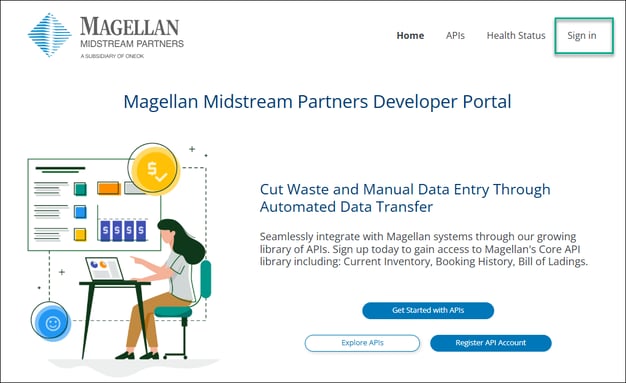
Navigate to the Magellan Midstream Partners Developer Portal at https://developers.magellanlp.com/
- Select "Sign in" and follow the sign in process using the credentials setup during Registration.
Need Help? Not registered for the portal?
View knowledge article: How to register for Magellan Developer's Portal
Step 2: Navigate to an API Library
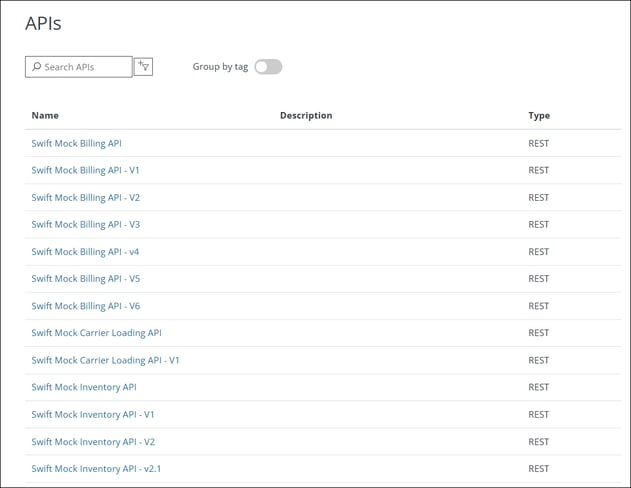
- Select "Explore APIs"
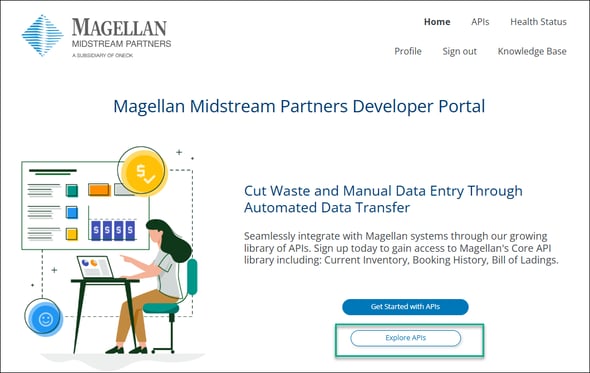
- From the APIs section, select one API Library to test from the list.
Step 3: Navigate to an endpoint
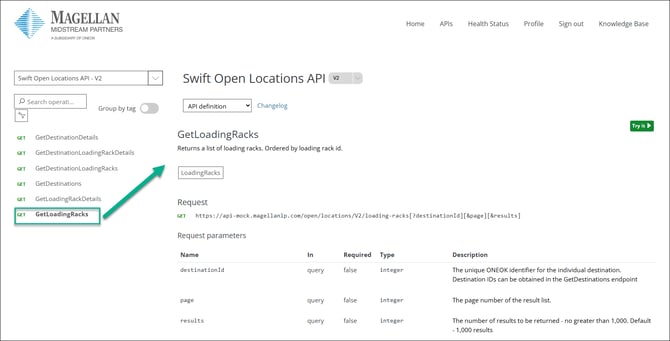
- Select one API endpoint within the selected library to test.
- i.e. Selecting GetLoadingRacks will load the details for this single endpoint.
Step 4: Open the Try It pane
-
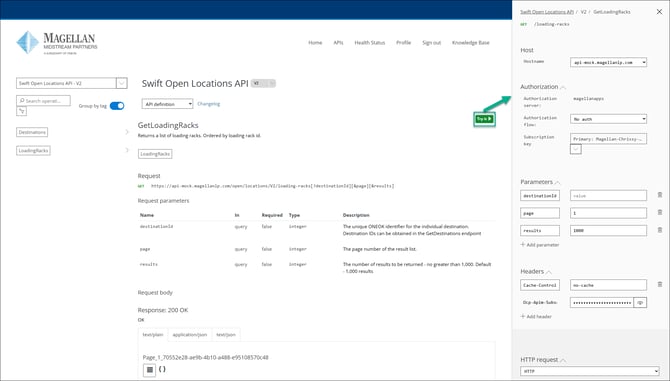
Select the green Try It button on the right side of the screen to open the Try It window pane.
Step 5: Complete the Try It form
-
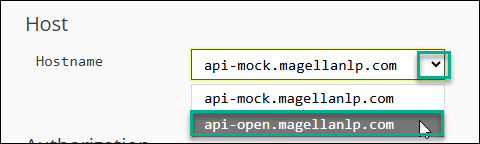
Select Host
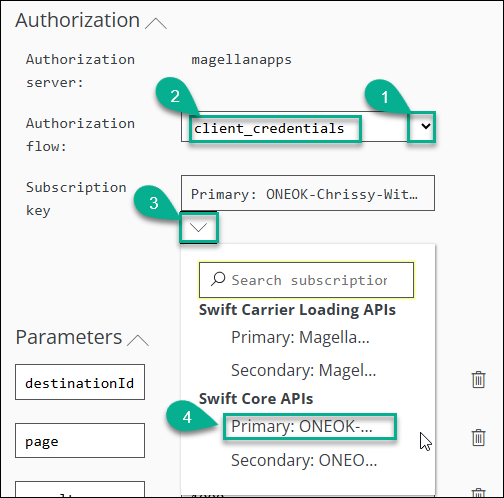
- Select Authorization flow and subscription key
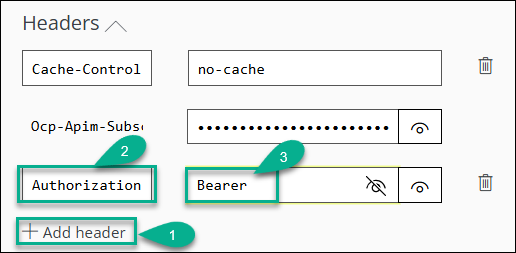
- Add Authorization Header
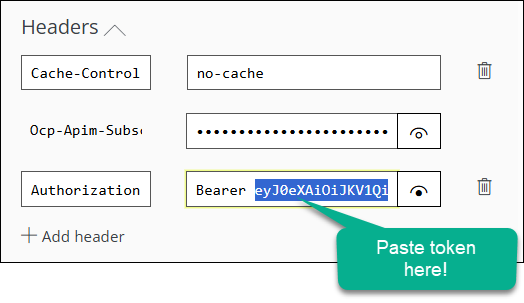
- Add token
Need help requesting a token?
View knowledge article: How to create a token
Authorization Header Format: A common mistake is leaving out Bearer and/or leaving out the space between Bearer & {token}. Bearer with a following space then pasted token must be the format of the Authorization.
Step 6: Send the Request
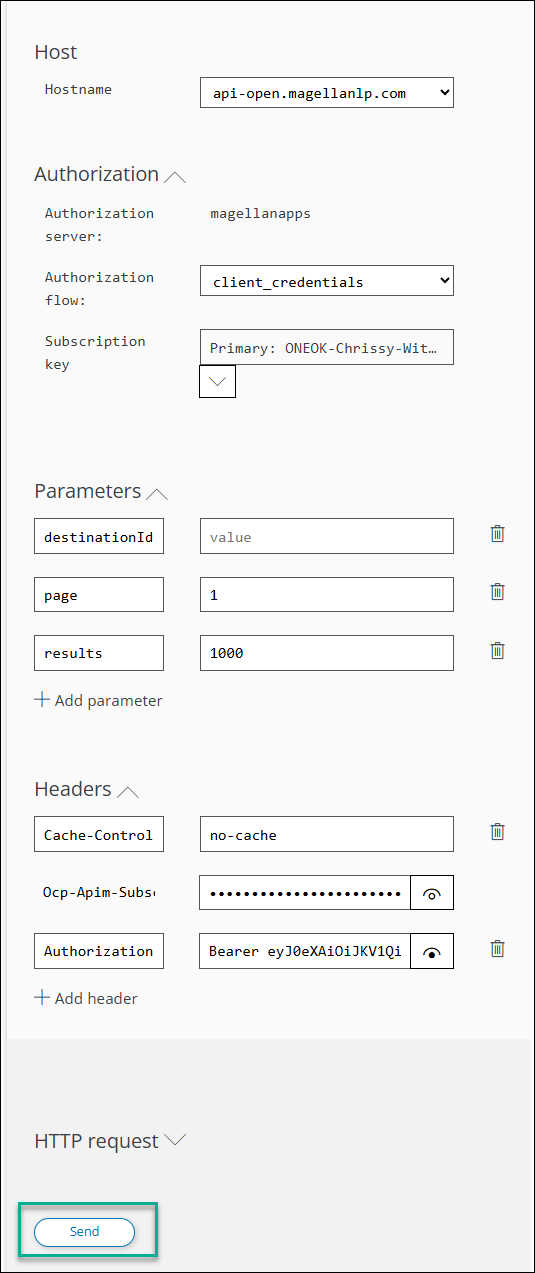
- Select Send button at the bottom of the "Try It" pane.
Step 7: View the Response
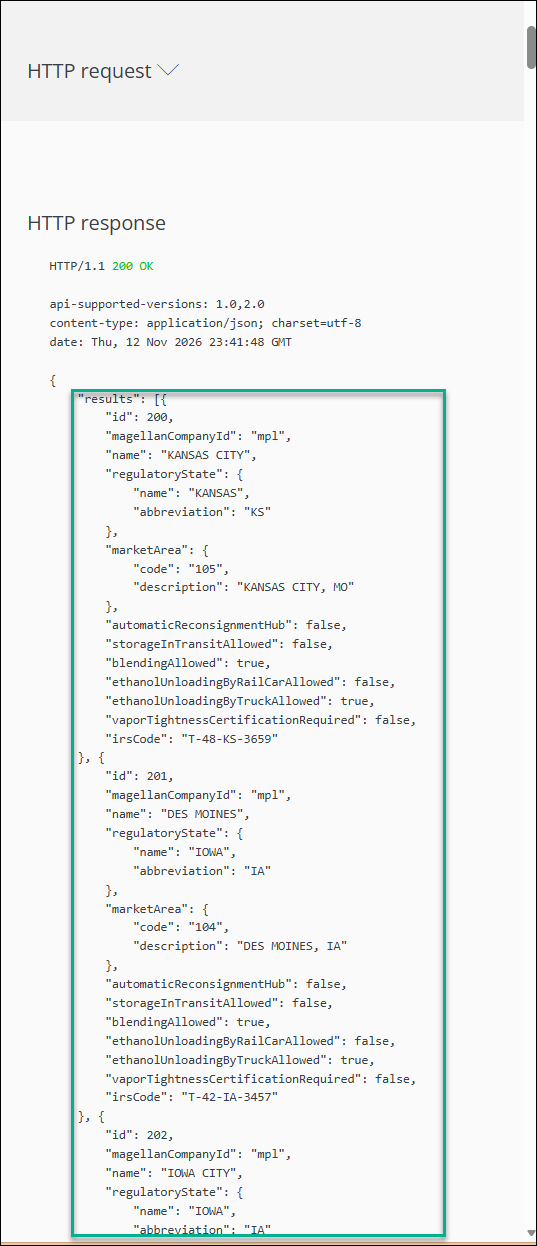
- Check the HTTP status code (200 for success)
- Scroll down to view the HTTP response